
Link validator
You can use the link validator to check your website for broken links.
It is difficult to find broken links, especially with large websites. With the link validator, TYPO3 offers a helpful tool to check your website for broken links.
The following user groups are authorized to use the link validator:
- Editors Plus
- Webadmins
To access the link validator, click on "Check links" in the main navigation and select the "Link validation" option in the dropdown at the top of the workspace (see screenshot "Open link validator").
The link validator consists of two areas that can be accessed via the respective tabs:
- Report
- Check links
The areas build on each other. The individual steps are explained in more detail below.

Step 1: Check links and create report
To initiate the check, switch to the "Check links" tab (see screenshot "Check links and create report").
Now click on the page in the page tree that you want to use as the starting point for the check. In the "Check these levels" drop-down menu, you can determine the scope of the check. You can choose to check all pages below the starting point or restrict the scope to a specific level depth or just the selected page.
Once you have determined both the starting point and the range, you must then select which links are to be checked under "Check these types of broken links".
You can choose from the following:
- External links: Links to external websites.
- File links: Links to files in your file directory.
- Internal links: Links to internal pages of your TYPO3 site.
Once you have made the desired selection, you can initiate the check by clicking on the "Check links" button.
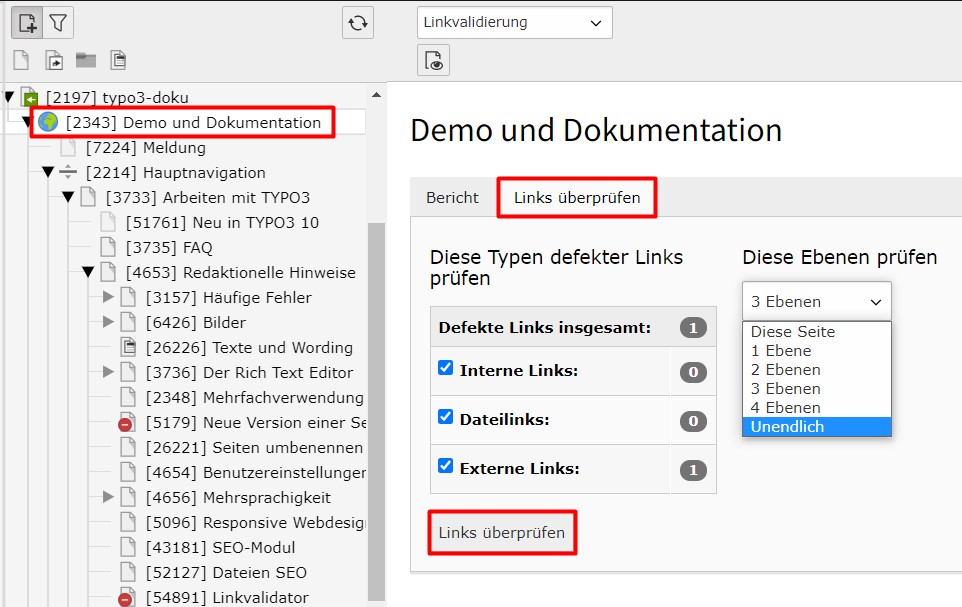
Important: Depending on the number of pages to be checked, the check can take up to 60 minutes. You will not be able to see the status of the current check, as this takes place in the background. A premature click on "Check links" will not speed up the check, but will start it again.
It is recommended that you only perform the link check for subtrees (e.g. for each main menu item individually).
Step 2: Display and filter report
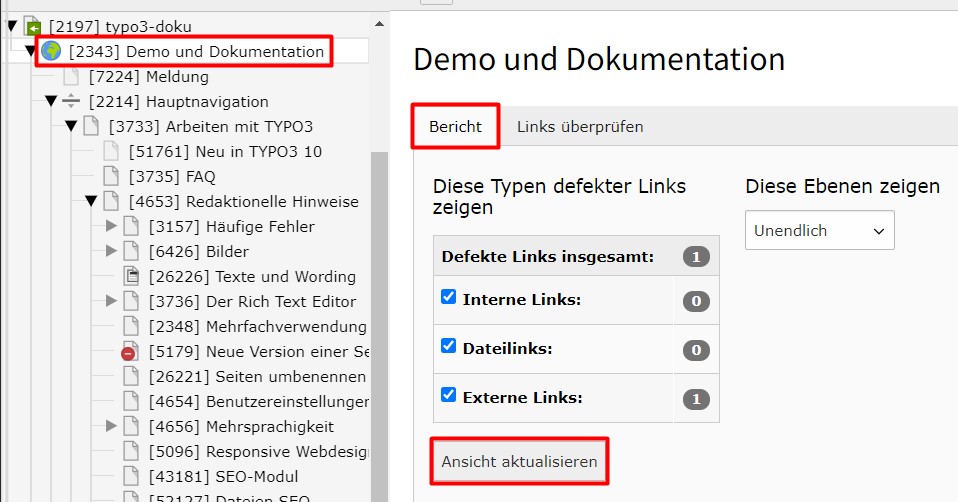
To view the report of the check, switch to the "Report" tab. In the page tree, select the page that you want to use as the starting point for the report. Based on the filters you have set, the test results are then already displayed in the lower area of the workspace. If this is not the case, you can reload the exam results by clicking on "Refresh view" (see screenshot "Display and filter report").
Note: Only check results for pages below the starting point you have set are displayed. If you have previously checked your entire website, you can restrict the displayed check results to certain areas of the page by setting the starting point.
In addition to the starting point, further filter options are available via the "Refresh view" button:
- Show these types of broken links: you can filter the results of the check according to specific link types. The number of problems found is displayed next to each option. Select one or more link types and click on "Refresh view" to filter the results.
- Show these levels: You can also restrict the results list to a specific level depth below the starting point you have set. Select the desired option and click on "Refresh view" to filter the results.
All filters can be combined with each other as desired.
Step 3: Edit report
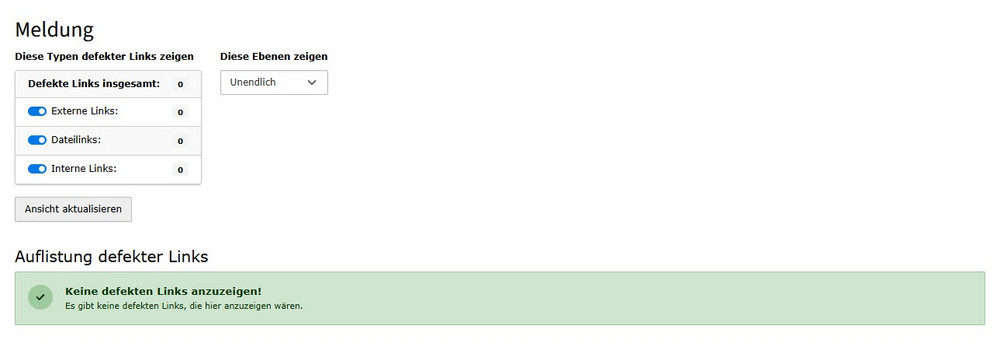
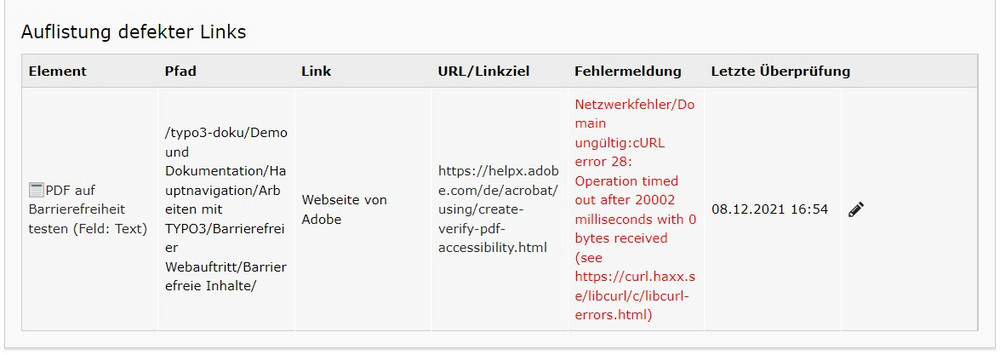
The report of the check is displayed in tabular form in the lower part of the workspace under "List of broken links".
If no broken links were found, you will see a green message "No broken links to display!" (see screenshot "No broken links").
The broken links can be checked and edited line by line. The entries in the table are divided into the following columns (see screenshot "Table with check results"):
- Element: The content element that contains the broken link. By clicking with the mouse, the affected element is opened in the workspace and can be edited.
- Path: The URL segment of the internal page on which the affected content element is located.
- Link: The text part of the broken link.
- URL / link target: The target of the broken link. Depending on the link type, this can be an external URL, an internal reference or a file.
- Error message: The error message generated by TYPO3 provides detailed information about the type of error.
- Last check: The date of the last check of the link by the link validator.
- A pencil icon is displayed at the end of each line. By clicking on this icon, the affected element is opened in the workspace and can be edited.
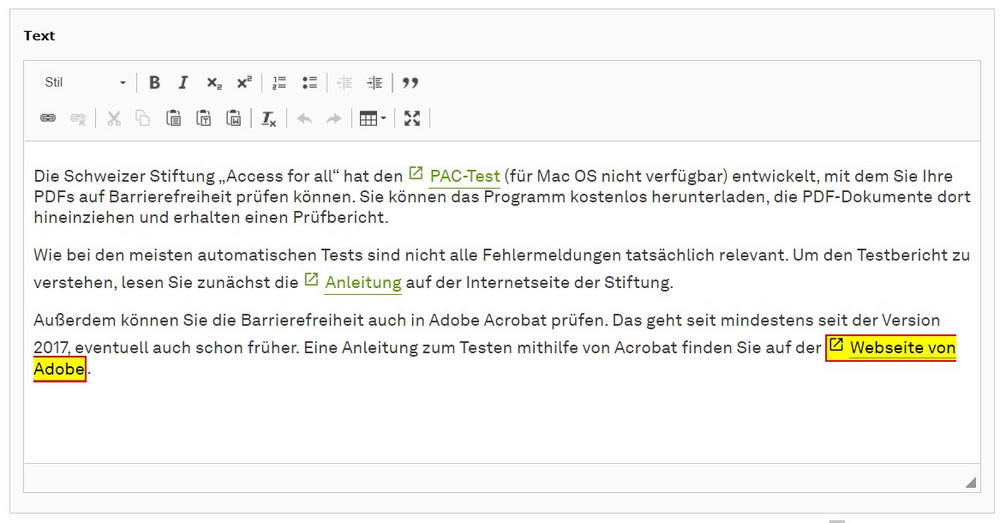
Note: TYPO highlights broken links in the rich text editor of content elements in yellow so that they are clearly recognizable (see screenshot "Highlighting broken links").
Special case: protected area (intranet)
If there is a protected area on your TYPO3 site, all links to or between protected pages are displayed as errors in the link validation. You can ignore these pages when processing the check results.