List view and clipboard
To edit several items at the same time, you must work with the List view module. In combination with the clipboard, several elements can be copied or moved - even across pages.
Fundamentals
The list view shows an overview of various data records of the selected page or folder. These can be found in separate tables, depending on the type of data record. The screenshot shows the following tables as examples:
- "Page" table: This table contains the subpages of the selected page.
- Page content" table: This table contains the content elements of the selected page.
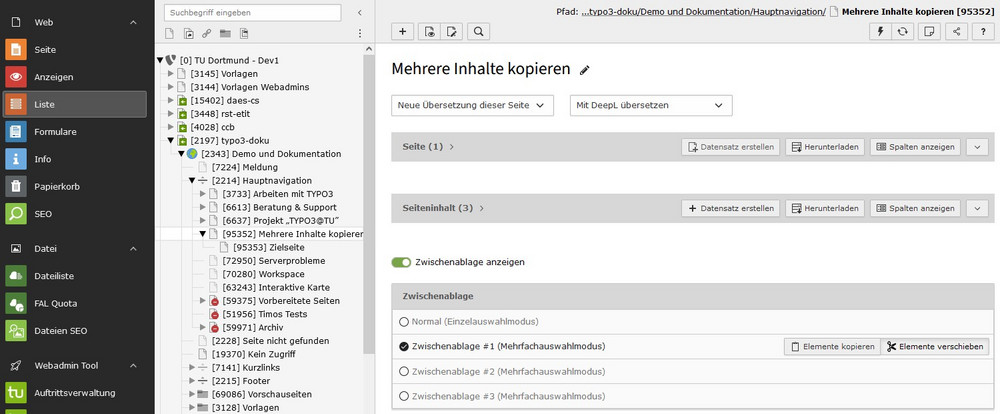
The tables in the screenshot are collapsed for the sake of clarity. Tables can be expanded and collapsed again using the arrow icon at the top right of each table.
Note: The list view should not be used for editing. We recommend using this view only for copying, moving or deleting several data records or for working in folders (e.g. when maintaining news, events or personal data).
The clipboard
The clipboard is only visible in the list view and is located at the bottom of the page, below the individual tables. If you do not see the clipboard, activate the "Show clipboard" option, as shown in the screenshot.
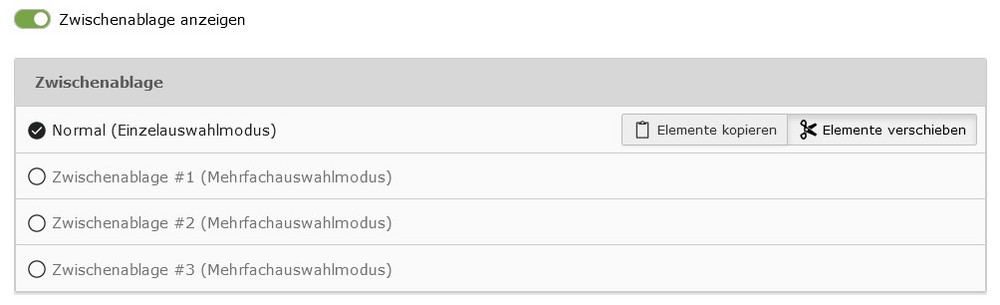
When using the clipboard, a distinction is made between single and multiple selection mode. In single selection mode, individual data records can be copied or moved; in multiple selection mode, any number of data records can be copied or moved.
One clipboard is available for single selection mode and three clipboards are available for multiple selection mode (see screenshot).
The basic principle is always the same: Selected data records are first moved to the respective clipboard and can then be pasted elsewhere (e.g. on another page). You have the choice of including a copy of the originals or moving the originals completely.
Selection of several elements
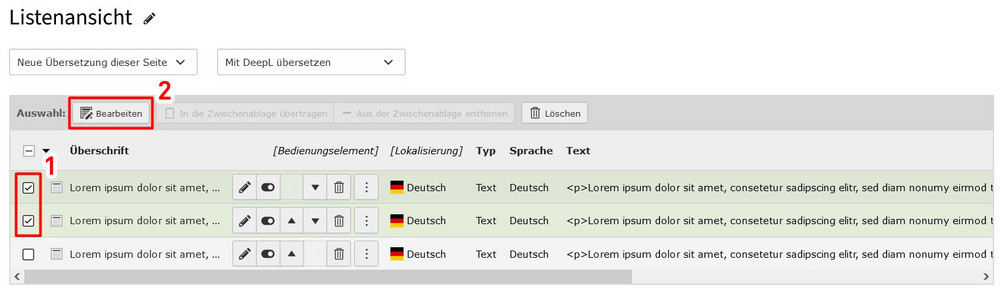
To edit several data records in a table at the same time, they must first be selected. This is done using the selection boxes on the left of each row. Once several data records have been selected, further functions are displayed in the header of the respective table (see screenshot).
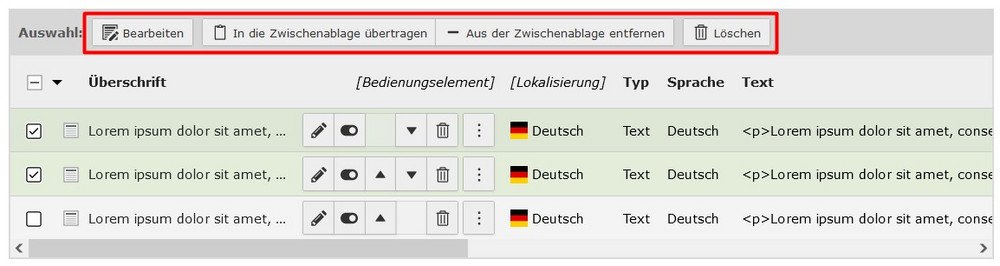
- Edit: All selected data records can be edited and saved at the same time.
- Transfer to clipboard: All selected data records are transferred to the selected clipboard.
- Remove from clipboard: All selected data records are removed from the selected clipboard (provided they were previously on it).
- Delete: All selected items are deleted and moved to the recycle bin.
Note: Functions 2 and 3 are only active if a clipboard has previously been activated for multiple selection mode.
Application examples
Example 1: Copying / moving data records
In this example, we copy several data records from the "Page content" table to a new page.
- Select a multiple selection mode in the clipboard.
- Tick the content elements to be copied.
- Click on "Transfer to clipboard".
- The content elements to be copied are now on the clipboard.
- Switch to the target page and check whether "Copy elements" is active.
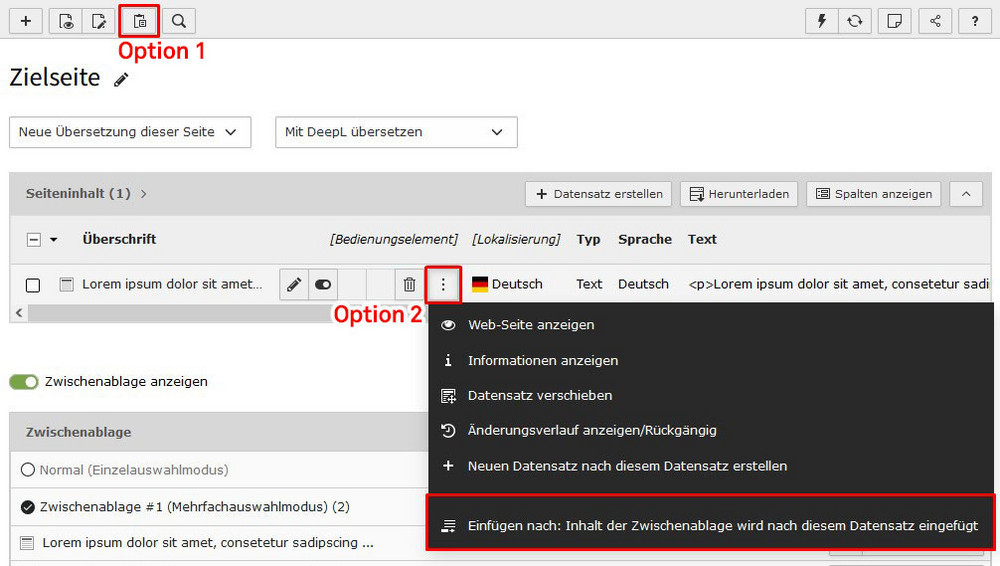
- You have two options for pasting the content elements:
- Option 1: If you want the content elements to be pasted exactly where they were previously in the page layout, click on the paste icon at the top of the workspace.
- Option 2: You can also insert the content elements at a different position. To do this, navigate to the desired content element under which the content elements from the clipboard are to be inserted and click on the icon with the three dots. This opens the context menu. Then click on "Paste to".
Note: If you do not want to copy the content elements but move them, activate "Move elements" in step 5.
Important: If you copy/move several content elements to a new page, make sure that both pages have identical layout areas. Otherwise errors may occur. You can find more information on layout areas on our topic page.


Example 2: Edit / delete data records
In this example, we will edit several data records from the "Page content" table.
- Tick the content elements to be edited.
- Click on "Edit" in the header of the table.
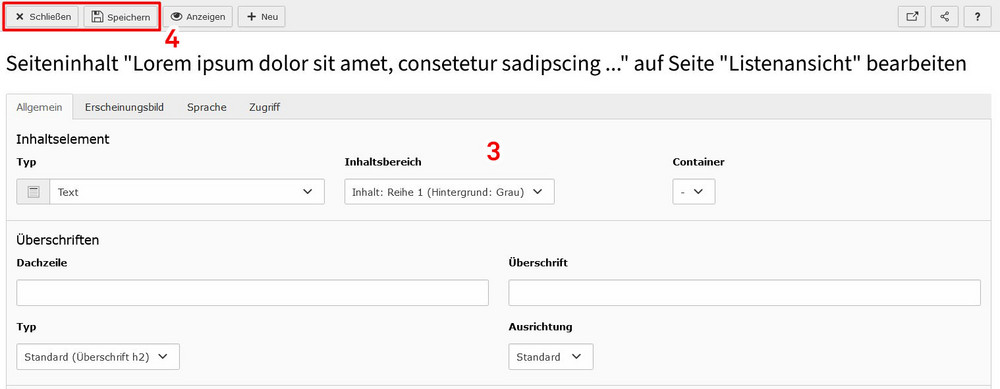
- All selected content elements are now opened one below the other in the workspace on the right and can be edited accordingly.
- Finally, save and close the view as usual.
Note: If you want to delete the selected data records. In step 2, click on "Delete" in the table header. The selected data records are then moved to the recycle bin.