
Working with the image editor
The image editor allows you to define custom crops that are then displayed in the frontend. You can set different image sections for each device type, including desktop PCs, tablets, and smartphones.
Do you have to crop images?
In many cases, you don't need to define separate image crops for desktops, tablets, and smartphones. When you upload a new image, TYPO3 automatically generates suitable crops for the respective content element.
However, depending on the image and its use case, you might want to keep a specific part of the photo in focus. Additionally, different device types often have unique requirements for how an image should be cropped.
As a general rule:

Make sure the main subject remains fully visible within the cropped area. If multiple aspect ratios are available (e.g., 4:3, 16:9, or free crop), choose one that fits harmoniously into your page layout and accommodates all essential details.
Examples from the infographic:
First row – Left: The key subject is awkwardly cut off. Right: All essential details are clearly visible within the frame.
Second row – Left: The image extends too far past the text, making the page layout look uneven. Right: The selected image crop perfectly matches the length of the text.

The same rules apply here as for desktops and tablets, though the layout behavior changes: On mobile devices, the website switches to a single-column layout. This means that content previously displayed side-by-side in multiple columns is now stacked vertically (see infographic).
For this reason, you should avoid portrait-format crops on mobile devices, as they make the page unnecessarily long. Landscape-format images are much better suited for mobile screens.
Set image sections (example)
In this example, we will add an image to a "Text & Images" content element with the orientation set to the right.
First, insert the content element at your desired position.
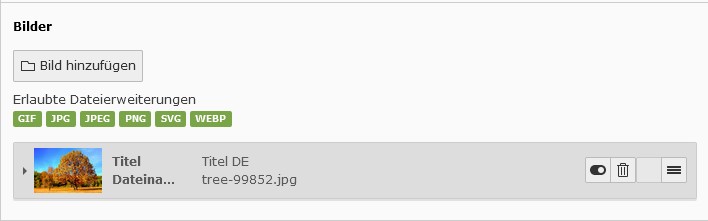
In edit mode, scroll down and click “Add image”. Select the appropriate folder from your file list and click on the image you want to use. TYPO3 will embed the image, and you will see a preview of it directly below the button (see the "Embed image" screenshot).
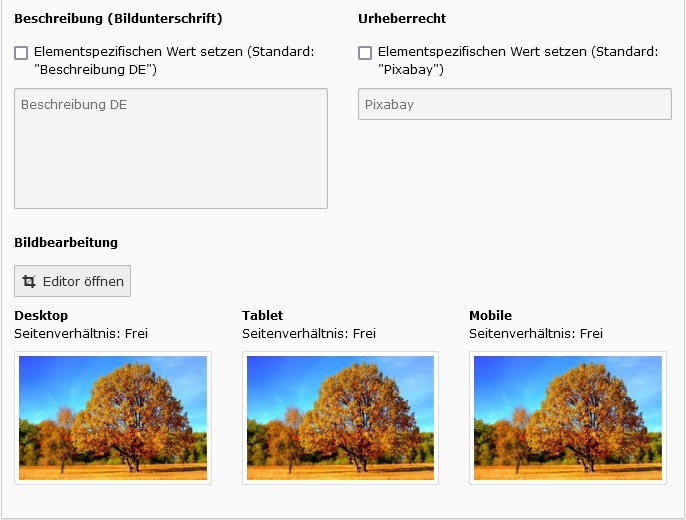
The image editor is located right below the image metadata. Here, you will find the “Open editor” button, which allows you to define custom crops. Below the button, the currently selected crops for Desktop, Tablet, and Mobile are displayed. When you add a new image, TYPO3 automatically applies a default crop for each device type. The specific default crop depends on the content element being used—in this case, it is set to the "Free" aspect ratio (see the "Default image sections" screenshot).
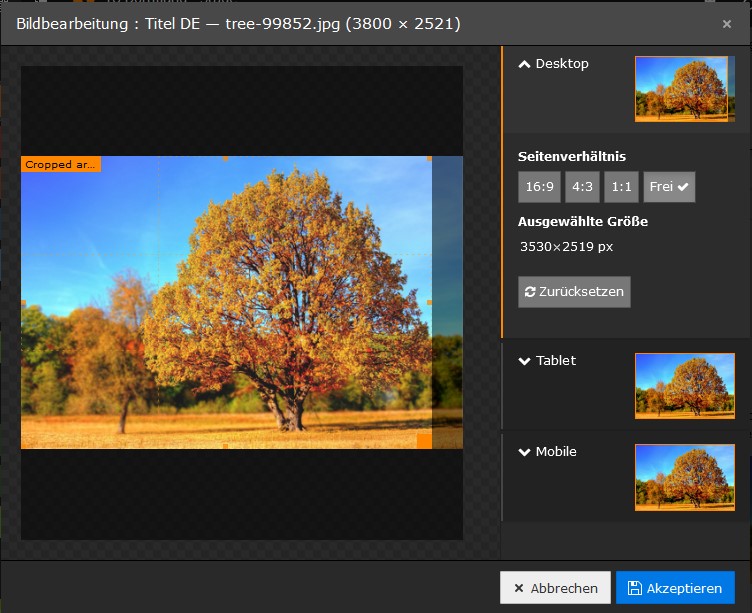
To set your own custom crops, click “Open editor”. The image editor interface contains the following elements (see the "Set image sections" screenshot):
- On the left side, you can see the original image and the crop area. The selected crop is outlined in orange. You can adjust the crop area by dragging the handles at the corners of the orange frame.
- The right column contains three tabs: Desktop, Tablet, and Mobile.
The Desktop tab is open by default and shows the available aspect ratios (16:9, 4:3, 1:1, and Free). First, select the 4:3 aspect ratio, then drag the orange frame to your desired position to set the crop. Repeat this process for both the Tablet and Mobile tabs.
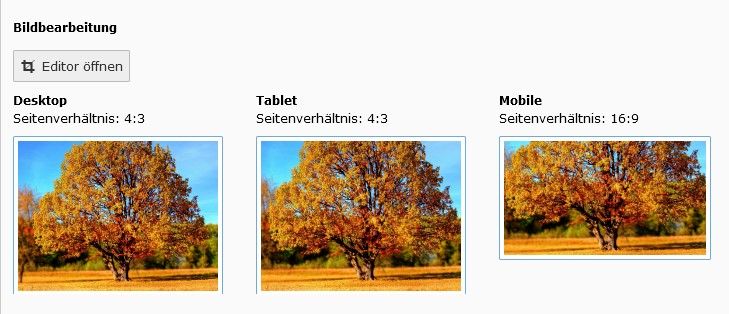
Once you have configured all image crops, click “Accept”. You can now review your custom crops in the preview area (see the "Self-selected image sections" screenshot).
Good to know
Whenever possible, upload high-resolution images to your file list. TYPO3 will automatically scale them down to the correct size. This automatic scaling also applies to any custom crops you define.
Custom crops created in the image editor do not alter the original image. Instead, TYPO3 generates and stores them as separate image files.
Every content element in the system has a predefined default crop. When you add an image, TYPO3 automatically applies this specific default layout.
Not all crop options are available for every content element. The selectable ratios are always tailored to the specific element type
You can enable the "Enlarge on Click" option for certain content elements. The magnified view always displays the image crop that you defined for desktop PCs.