Multi-factor authentication
To provide additional security for the backend, multi-factor authentication was implemented, as is the case with many other services at TU Dortmund University.
Until January 31, 2027, the use of multi-factor authentication is optional. Starting February 1, 2027, it will be mandatory.
We recommend that you set up multi-factor authentication for your account well in advance of the deadline.
Effective Date: February 1, 2027
Starting February 1, 2027, multi-factor authentication will be mandatory.
Activation
To use multi-factor authentication before the deadline, you must first enable it in your user settings under the "Account Security" tab.
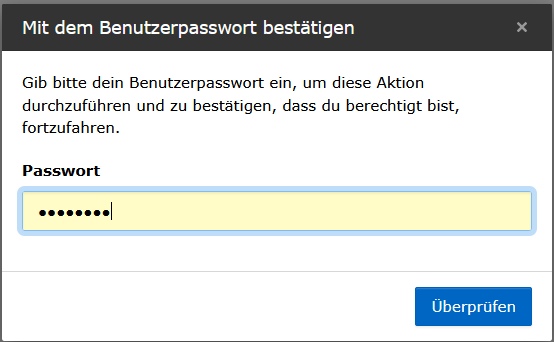
You must confirm the activation by entering the password you use to log in to the backend.

Setup and Management of Multi-Factor Authentication
The page for setting up multi-factor authentication offers three tiles to choose from:
- Time-based one-time password
- Recovery codes
You can access the page for setting up or managing multi-factor authentication at any time via your user settings on the Account Security tab.
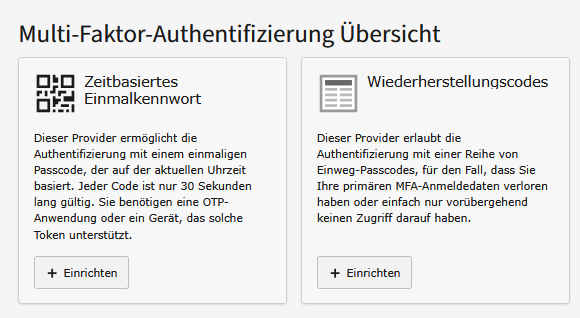
Time-based one-time password
To set up the "Time-Based One-Time Password" feature, click the "Set Up" button.
An input form will open, next to which the next steps are described in detail.
You can choose any application you like to generate the password. The ITMC recommends authenticator apps for the most common operating systems on the service portal.

Recovery codes
Recovery codes are random eight-digit codes that can be used for authentication if you lose your primary authentication credentials. Each code is valid only once.
After clicking the “Set Up” button, you’ll be taken to a form that allows you to generate recovery codes. Instructions for using this feature are described in detail on the page.
These recovery codes are intended for emergencies only and should not be used under normal circumstances.

Backend Login with Multi-Factor Authentication
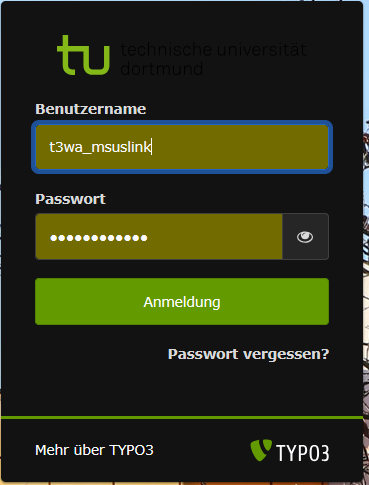
To log in to the backend, start by entering your username and password in the login screen as usual.
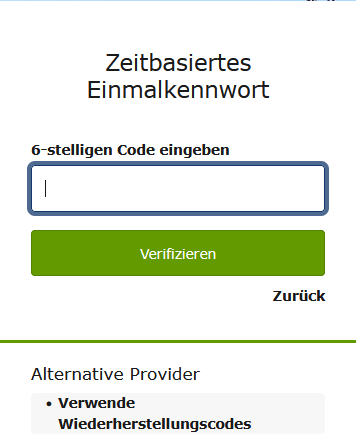
Once you’ve successfully logged in, you’ll be prompted to enter the time-based one-time password. As soon as you enter it, you’ll be logged in.
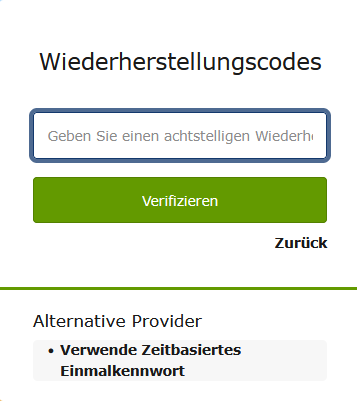
If your authenticator app is not available, you can click the link at the bottom of the one-time password entry screen to switch to entering a recovery code.