Working with the file list
On this topic page you will find working instructions and information on the file list.
Selection of multiple files or folders
In the file list, as in the list view, you can select and edit several files or folders at the same time. This is particularly suitable for editing metadata.
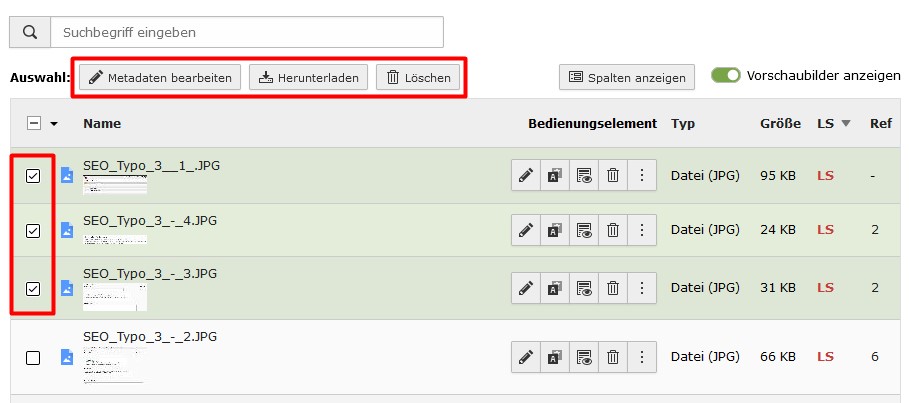
After selecting the files or folders, the following options are available to you:
- Edit metadata: This option is only available for files and allows you to edit the metadata of all selected files at the same time.
- Download: This function is used to download all selected files or folders as a ZIP archive. The original folder structure is retained.
- Delete: All files without references and all empty folders are deleted.
Using the clipboard
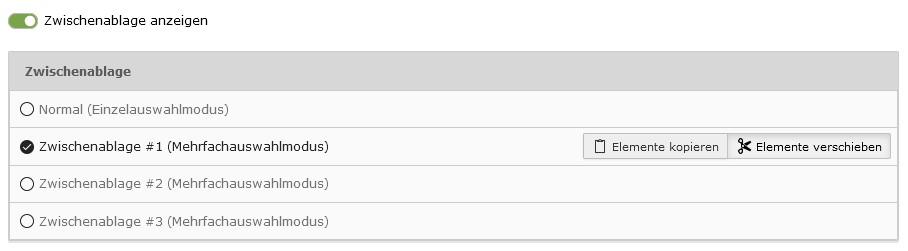
Similar to the list view, you can also use the clipboard in the file list to copy or move files and folders. You can find information on using the clipboard on our list view topic page.
Important:
- Copying or moving large amounts of data should be avoided, as this greatly increases the system load and can lead to errors.
- Moving folders should, if possible, be avoided altogether, as this can lead to errors in the database under certain circumstances.
Show more columns
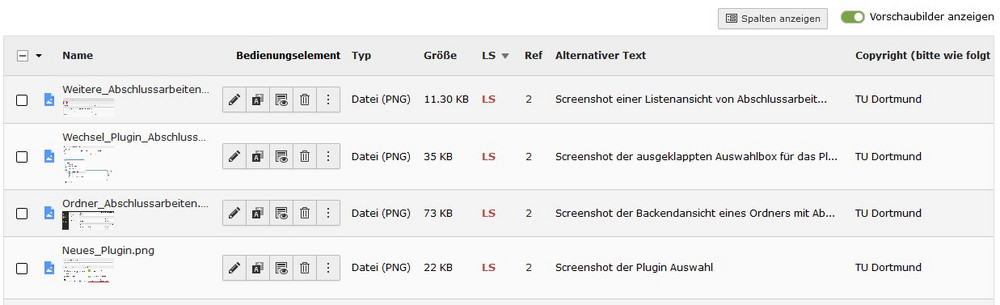
You have the option of displaying additional columns in the file list. The "Copyright" and "Alternative text" columns are recommended for editorial work so that missing metadata can be found and corrected more quickly.
To show additional columns, proceed as follows:
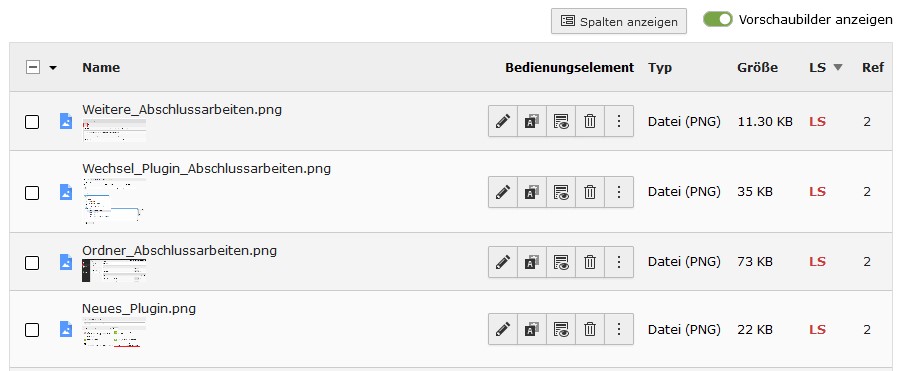
- Click on the "Show columns" button (screenshot "Show columns 1").
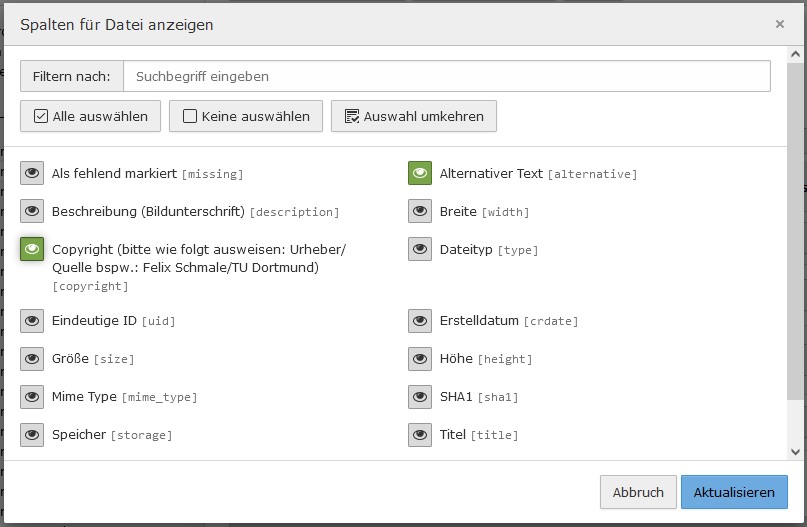
- A pop-up window opens. Select the desired columns, in this case "Copyright" and "Alternative text" (screenshot "Show columns 2").
- Click on "Update".
- The new columns are then visible in the file list (screenshot "Show columns 3").