Bookmarks in the backend
You can set bookmarks to quickly access specific content and views within the backend.
Examples of valid bookmarks:
- A specific page in the "Page" module
- A specific content element within the "Page" module
- The "Forms" module
- A folder in the "List" module
How to create a bookmark:
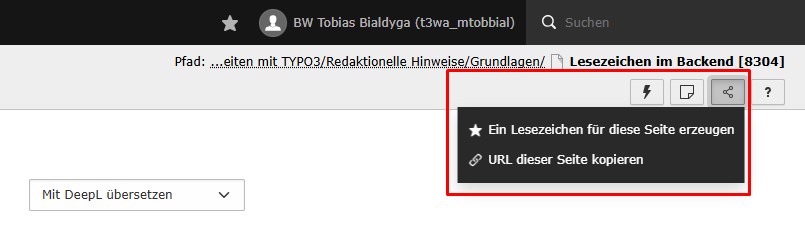
Click the share icon in the top right corner. This opens a dropdown menu. Click “Create bookmark” (see the "Create bookmark" screenshot).
How to access your bookmarks:
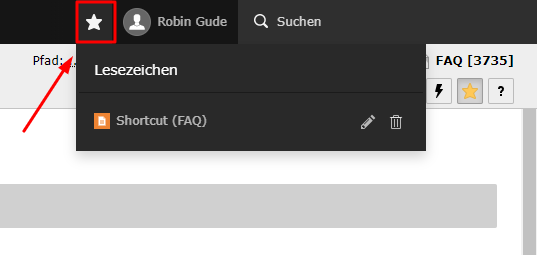
Click the star icon next to your username at the top of the screen (see the "Bookmark menu" screenshot). This opens an overview of all your bookmarks. Simply click a bookmark to jump directly to that view.
You can edit your bookmarks by clicking the pencil icon or delete them using the trash icon.
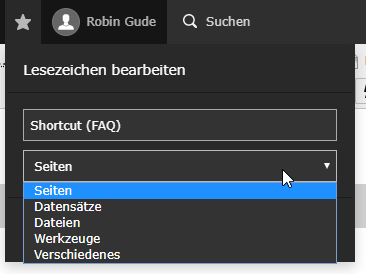
Editing a bookmark allows you to change its title and category (see the "Edit bookmark" screenshot). The title and category only help organize your bookmark menu and do not affect the actual content.